


Page 188 - TransAT_Tutorial_Manual
P. 188
TransAT Tutorial Manual                                                        4.5. Spillway


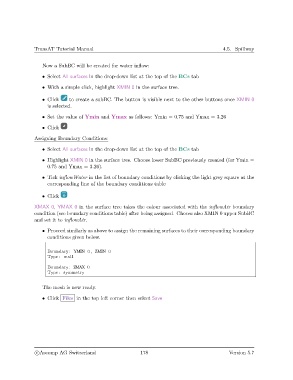
                   Now a SubBC will be created for water inflow:
                   • Select All surfaces in the drop-down list at the top of the BCs tab

                   • With a simple click, highlight XMIN 0 in the surface tree.

                   • Click    to create a subBC. The button is visible next to the other buttons once XMIN 0
                     is selected.

                   • Set the value of Ymin and Ymax as follows: Ymin = 0.75 and Ymax = 3.26

                   • Click

               Assigning Boundary Conditions:
                   • Select All surfaces in the drop-down list at the top of the BCs tab

                   • Highlight XMIN 0 in the surface tree. Choose lower SubBC previously created (for Ymin =
                     0.75 and Ymax = 3.26).

                   • Tick inflowWater in the list of boundary conditions by clicking the light grey square at the
                     corresponding line of the boundary conditions table

                   • Click

               XMAX 0, YMAX 0 in the surface tree takes the colour associated with the inflowAir boundary
               condition (see boundary conditions table) after being assigned. Choose also XMIN 0 upper SubBC
               and set it to inflowAir.

                   • Proceed similarly as above to assign the remaining surfaces to their corresponding boundary
                     conditions given below.


                     Boundary : YMIN 0 , ZMIN 0
                     Type : wall

                     Boundary : ZMAX 0
                     Type : symmetry


                   The mesh is now ready.

                   • Click Files in the top left corner then select Save


                c
Ascomp AG Switzerland                    178                                  Version 5.7

