


Page 298 - TransAT_Tutorial_Manual
P. 298
TransAT Tutorial Manual                                                    7.2. coupling slug


               7.2.6    Geo

               In this tab, the necessary objects are added to the mesh.

                   • Click Geo at the top of the TransATUI.

               Objects
                  Load the geometry file already prepared and located in the TransAT Object Database.

                   • Select the Database tab.
                   • Expand the Oil-Gas folder

                   • Select olga pipe.gts

                   • then click   to load the file to the mesh

                   • In the Choose Units window that popped up, select m in the drop-down box

                   • Activate the check-box Resize Mesh around Geometry to resize the domain

                   • Click    to create the pipe and send it to the mesh

               The properites of the Immersed Surfaces will be adjusted, to do so

                   • Click    of Immersed Surfaces
                   • Set the following parameters in the Immersed Surfaces window then click     to save the
                     settings

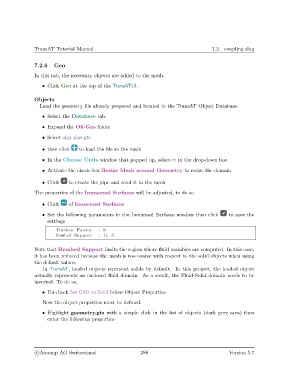
                        Thicken Factor    : 0
                        Hembed Support    : 1e−3

               Note that Hembed Support limits the region where fluid variables are computed. In this case,
               it has been reduced because the mesh is too coarse with respect to the solid objects when using
               the default values.
                   In TransAT, loaded objects represent solids by default. In this project, the loaded object
               actually represents an enclosed fluid domain. As a result, the Fluid-Solid domain needs to be
               inverted. To do so,

                   • Un-check Set CAD as Solid below Object Properties
                   Now the object properties must be defined.

                   • Highlight geometry.gts with a simple click in the list of objects (dark grey area) then
                     enter the following properties


                c
Ascomp AG Switzerland                    288                                  Version 5.7

