


Page 354 - TransAT_Tutorial_Manual
P. 354
TransAT Tutorial Manual                                                   9.1. Water suction


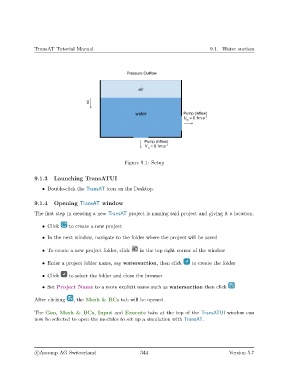
                                                     Figure 9.1: Setup


               9.1.3    Launching TransATUI

                   • Double-click the TransAT icon on the Desktop.

               9.1.4    Opening TransAT window

               The first step in creating a new TransAT project is naming said project and giving it a location.

                   • Click    to create a new project

                   • In the next window, navigate to the folder where the project will be saved


                   • To create a new project folder, click  in the top right corner of the window

                   • Enter a project folder name, say watersuction, then click   to create the folder

                   • Click    to select the folder and close the browser

                   • Set Project Name to a more explicit name such as watersuction then click


               After clicking   , the Mesh & BCs tab will be opened.

               The Geo, Mesh & BCs, Input and Execute tabs at the top of the TransATUI window can
               now be selected to open the modules to set up a simulation with TransAT.


                c
Ascomp AG Switzerland                    344                                  Version 5.7

