


Page 427 - TransAT_Tutorial_Manual
P. 427
TransAT Tutorial Manual                                 10.3. Droplet Impact on a Flat Plate


               In this case, a wall is located on X max surface and symmetry conditions are applied on the re-
               maining surfaces. Below step-by-step instructions are given to create the wall boundary condition
               and define its properties.

                   • From the Wall BC available, click   to set the properties of the boundary condition

                   • Select the Interface Tracking tab

                   • Set Contact Angle to 118  ◦

                   • Click    to save the settings and close the window
               Assigning Boundary Conditions:

                   • Select boundary X Min from the drop-down list at the top of the BCs tab

                   • By a simple click, highlight XMIN 0 in the surface tree

                   • Tick (light grey square) symmetry in the boundary conditions table

                   • Click

               XMin 0 in the surface tree takes the color of the boundary condition after being assigned.

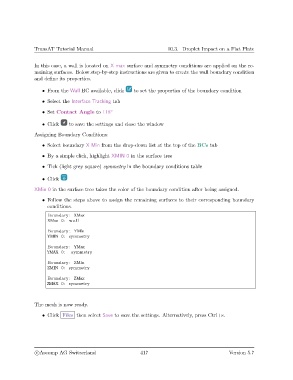
                   • Follow the steps above to assign the remaining surfaces to their corresponding boundary
                     conditions.

                     Boundary : XMax
                     XMax 0: wall

                     Boundary : YMin
                     YMIN 0: symmetry

                     Boundary : YMax
                     YMAX 0:   symmetry

                     Boundary : ZMin
                     ZMIN 0: symmetry

                     Boundary : ZMax
                     ZMAX 0: symmetry


               The mesh is now ready.

                   • Click Files then select Save to save the settings. Alternatively, press Ctrl+s.


                c
Ascomp AG Switzerland                    417                                  Version 5.7

